
Videolite
Drop a video. Get a smaller one.
A simple Mac app that makes your videos smaller without asking you to understand anything about video.
Download for Mac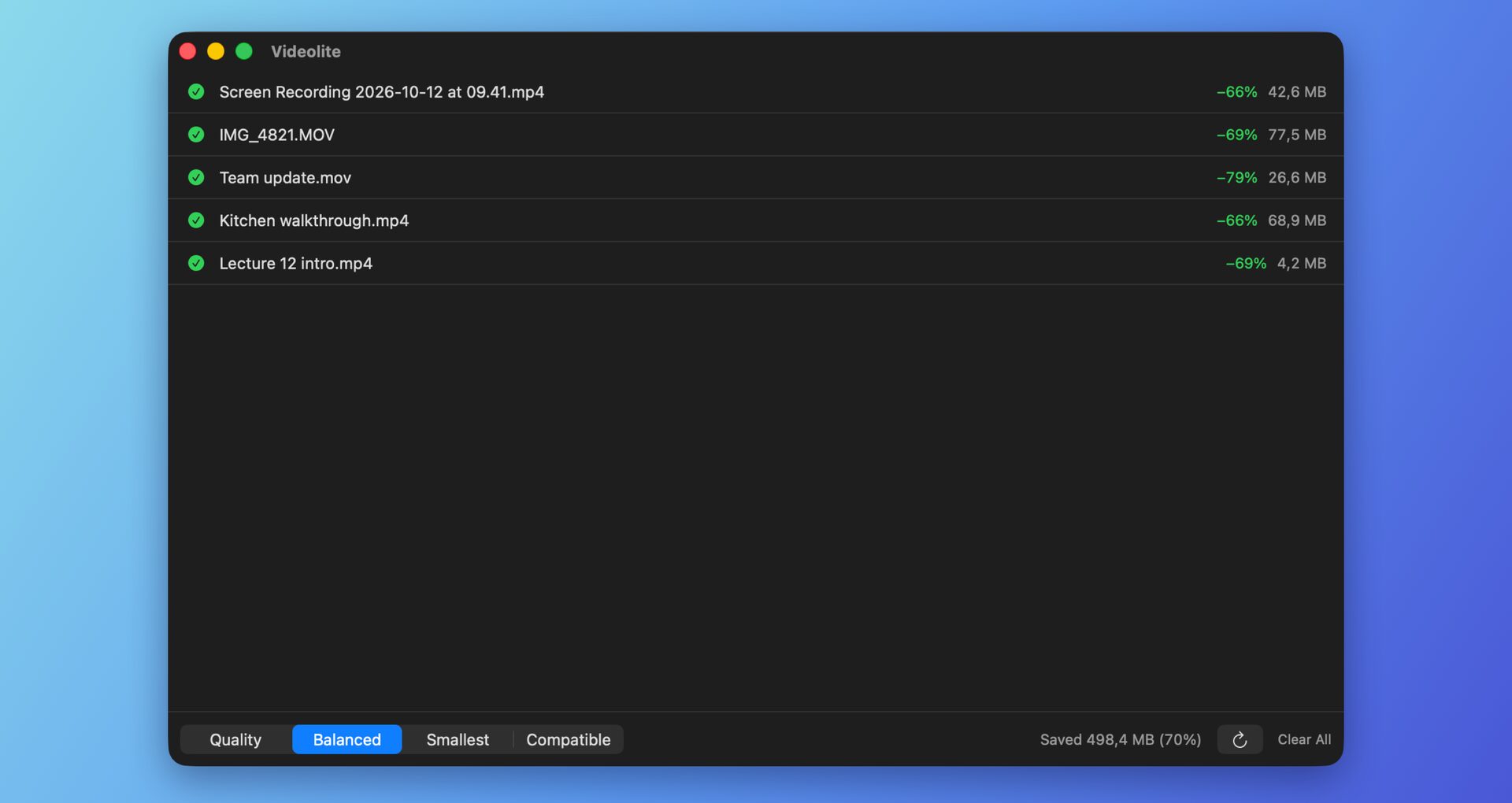
Smaller videos, no settings
Drop it and forget it
Drag videos, or whole folders, onto the window or the Dock icon. Videolite works through them one by one and shows how much space you saved.
Four presets, named by what you get
Quality looks identical to the original. Balanced looks great and saves a lot, so it is the default. Smallest is fine for messaging. Compatible plays on anything, even old devices.
Works right from Finder
Right-click any video in Finder and choose Open With → Videolite. No setup, nothing to switch on.
Your originals stay put
Videolite saves a new, smaller copy next to the original and never changes the file you gave it. No account, no uploads, no internet connection.
Install
- Download Videolite.dmg and open it.
- Drag Videolite to your Applications folder.
- Open Videolite from Applications, then drop a video on the window.
If macOS won’t open it
Until this release is notarized by Apple, macOS may block it the first time with “Apple could not verify ‘Videolite’ is free of malware”.
- macOS 15 and later: open System Settings → Privacy & Security, scroll to “‘Videolite’ was blocked to protect your Mac”, click Open Anyway, then confirm with your password and click Open Anyway again.
- macOS 14: right-click Videolite in Applications, choose Open, then click Open.
You only need to do this once.
Questions
- Does it upload my videos?
- No. Everything happens on your Mac. Videolite has no account, no analytics and never connects to the internet, not even to check for updates.
- Will my videos look worse?
- Making a video smaller always means saving it again with less detail, and Videolite doesn’t pretend otherwise. What it promises is that with Quality and Balanced you won’t see the difference in everyday viewing. Smallest trades some sharpness for the smallest file. If a video is already as small as it sensibly gets, Videolite tells you instead of handing you a bigger file.
- Which videos does it work with?
- MOV and MP4 files, and anything else QuickTime Player can play, including iPhone videos and screen recordings. The smaller copy is always an MP4, which plays almost everywhere.
- Where does the smaller file go?
- Right next to the original, with “.min” added to the name: “video.mov” becomes “video.min.mp4”. If you prefer, a setting saves every copy to your Downloads folder instead.